
The PlayTour appstep by step
Eleven screens from the app, in the order you meet them: create an account, sign in, find a tournament, enter, follow your matches, and keep track of what still needs arranging. The app is still being built and tested and is not in the App Store or on Google Play, so until it ships everything works on the website, including in the browser on your phone.
Getting started: an account and your home screen
The app uses the same account as the website. If you have entered a tournament on the website before, skip the first step and simply sign in.
Create an account
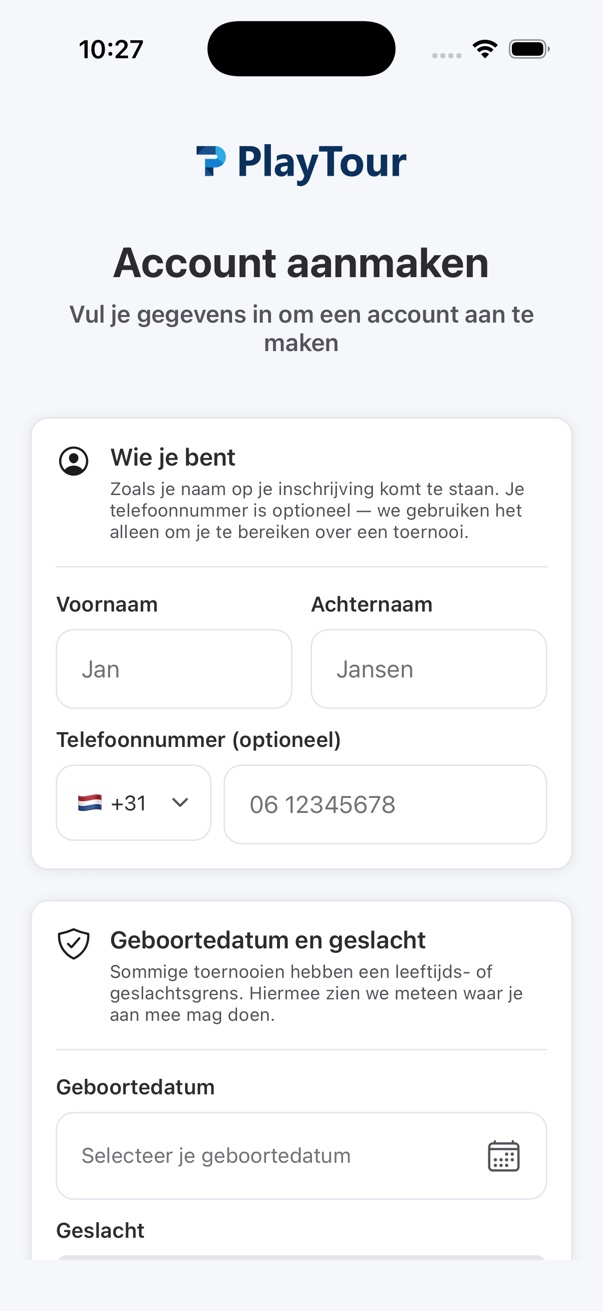
At the bottom of the sign-in screen is a link to register. Give your first and last name as they may appear on your entry, plus your date of birth and gender, because a lot of categories have an age or gender limit. Your phone number is optional and is only used to reach you about a tournament.
- Your name as it will appear on the entry
- Date of birth and gender for the age and gender limits
- A phone number is welcome, not required
Sign in
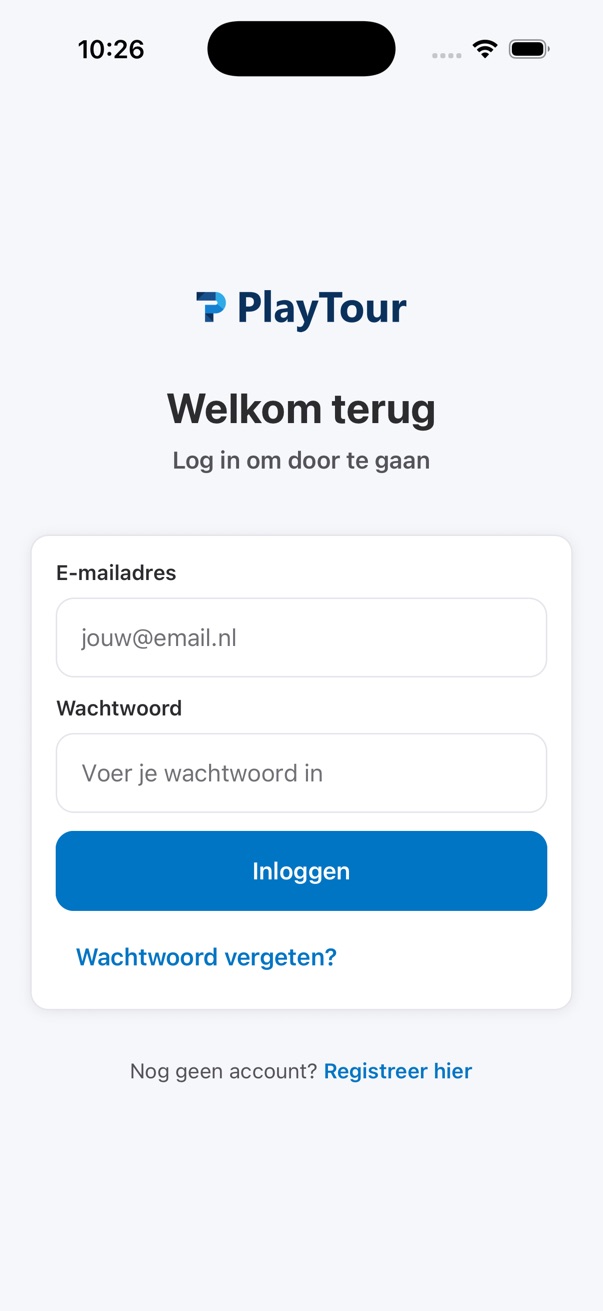
After that, signing in is an email address and a password. If you have lost your password, the link under the button lets you set a new one yourself. You stay signed in afterwards, so this is something you do once and then stop thinking about.
- An email address and a password, nothing else
- A forgotten password is yours to fix
- You stay signed in between sessions
Your home screen
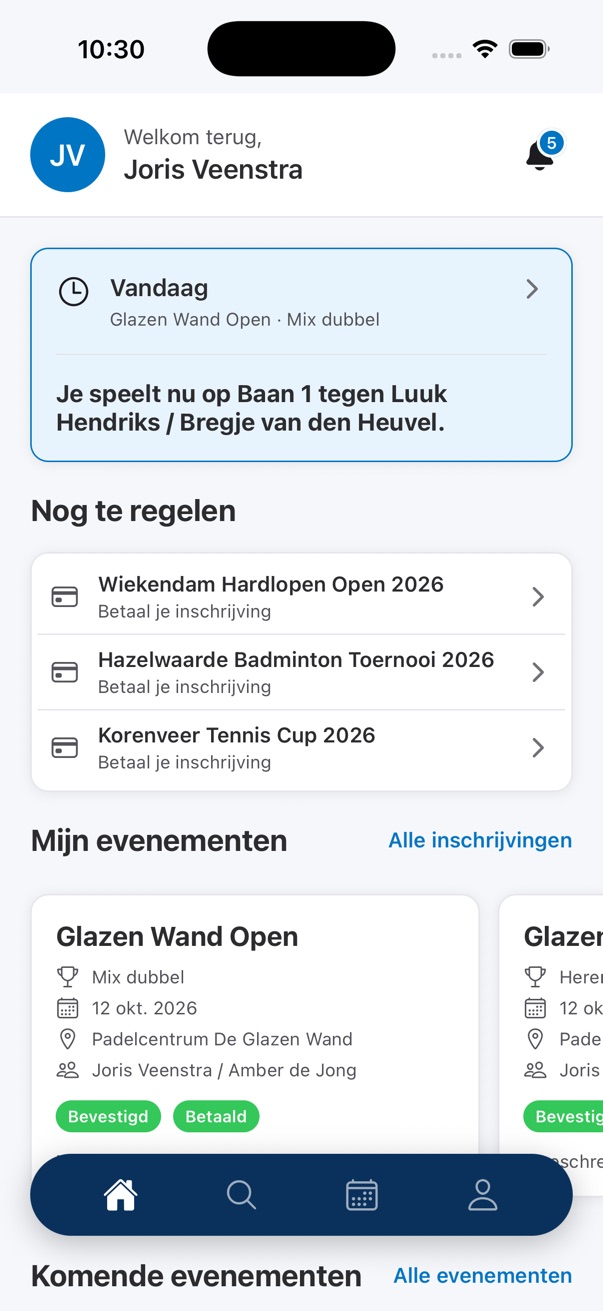
This is where the app opens every time. What is being played today sits at the top, with the court and your opponent beside it. Under that is what still needs arranging, an entry waiting to be paid for instance, and under that your own events with their status and the amount. The bell in the corner shows how many notifications you have not read.
- Today’s match at the top
- What still needs arranging, such as an open payment
- Your entries with status, date and amount
Finding a tournament and entering
Three screens take you from the search list to a submitted entry. You start on the magnifying glass in the tab bar.
Search
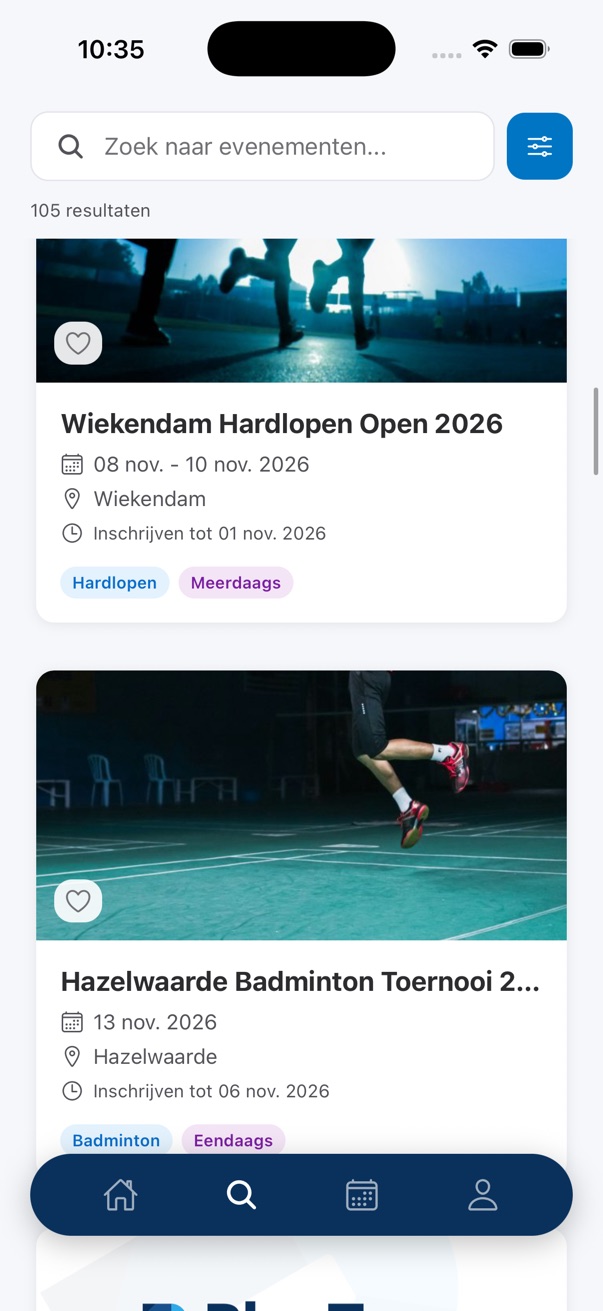
The search tab shows everything on the platform, with the number of results above the list. Each card gives the sport, the town, the date and how long you have to enter, with labels such as one day or multi-day. The button beside the search field opens the filters, and the heart on a card saves a tournament for later.
- Sport, town, date and entry deadline on every card
- Filters behind the button beside the search field
- The heart saves a tournament straight from the list
The tournament page
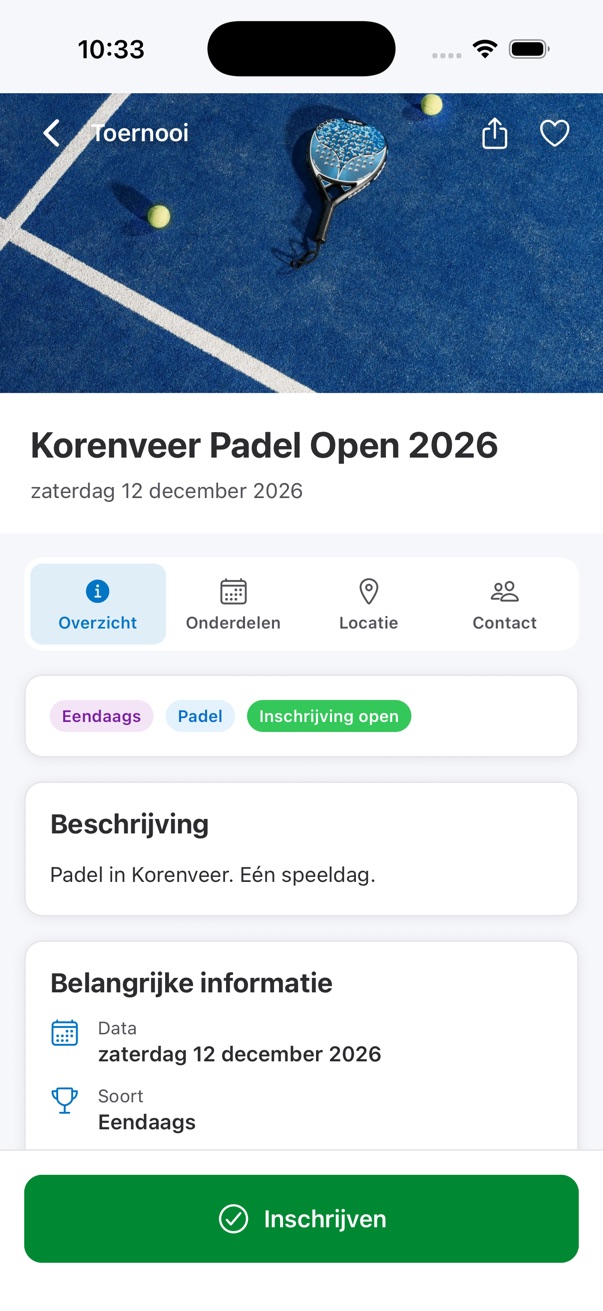
Every tournament opens with the club’s banner and four tabs: overview, categories, venue and contact. The overview has the description, the playing dates and whether entry is open. Categories shows what you can take part in, venue shows where it is, contact shows who to ask. The button to enter stays at the bottom of the screen while you read.
- Tabs for overview, categories, venue and contact
- Whether entry is open or closed
- The enter button stays pinned at the bottom
The entry form
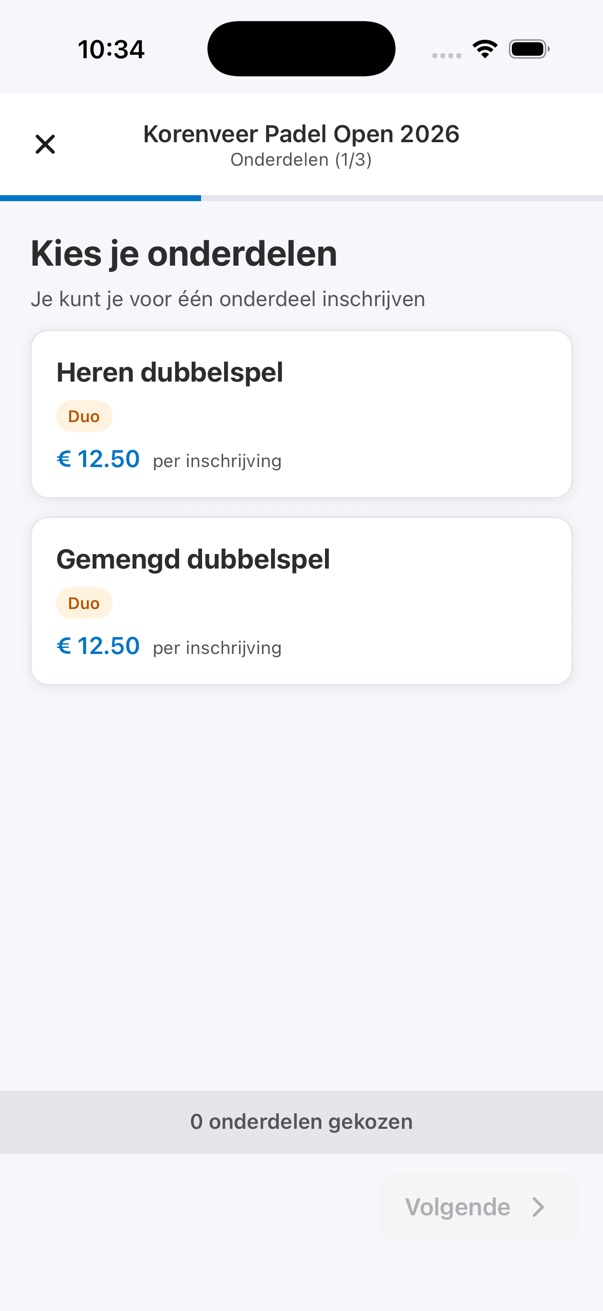
Step one is choosing your category. Each one shows the entry fee and, for a team category, how many players a team has. The header tells you which step you are on and how many there are; that depends on what this tournament asks. After the categories come your details, your teammates if there are any, paid extras if the club offers them, and finally a summary you read back before you submit.
- The fee and the team size sit with the category
- How many steps there are depends on the tournament
- You read the whole entry back before submitting
During the tournament
Once the playing schedule is out, the app is mostly something you glance at: where do I go, who am I playing, what is the score.
My matches
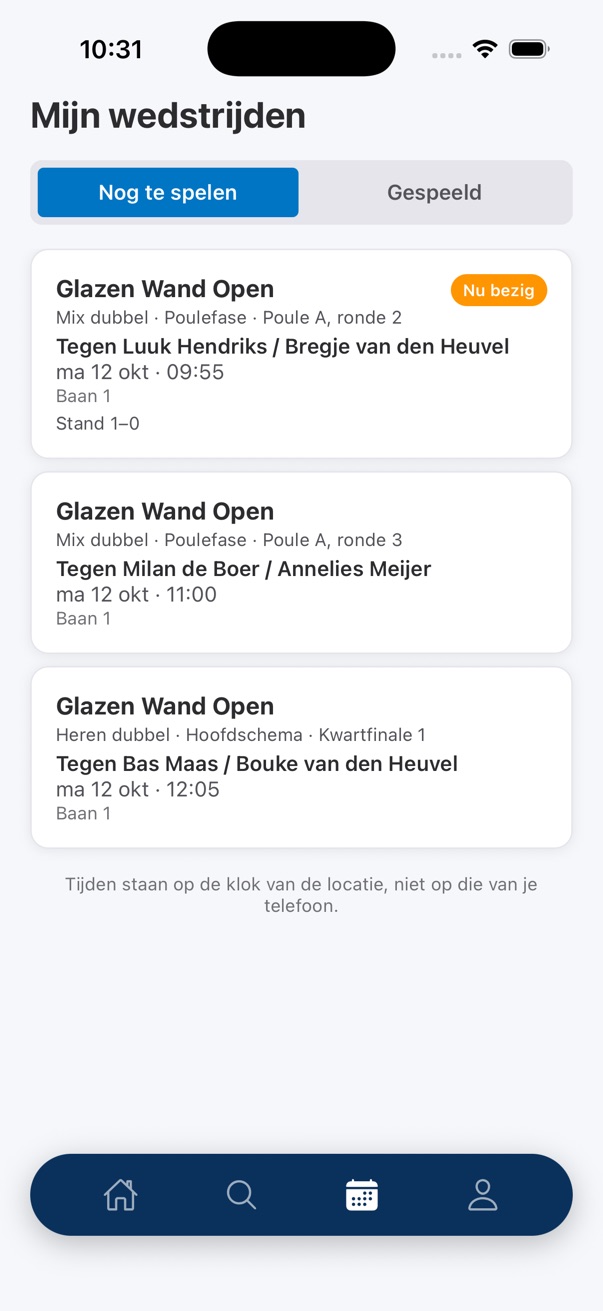
The third tab splits into what you still have to play and what you have played. Each match gives the tournament, the category, the group or the round, your opponent, the day, the time and the court. The one in progress is marked as such, with the score beside it. Read the line under the list: times are on the venue’s clock, not on your phone’s.
- Still to play and already played, kept apart
- Group or round, opponent, time and court
- The score of the match in progress
- Times are on the venue’s clock
Notifications
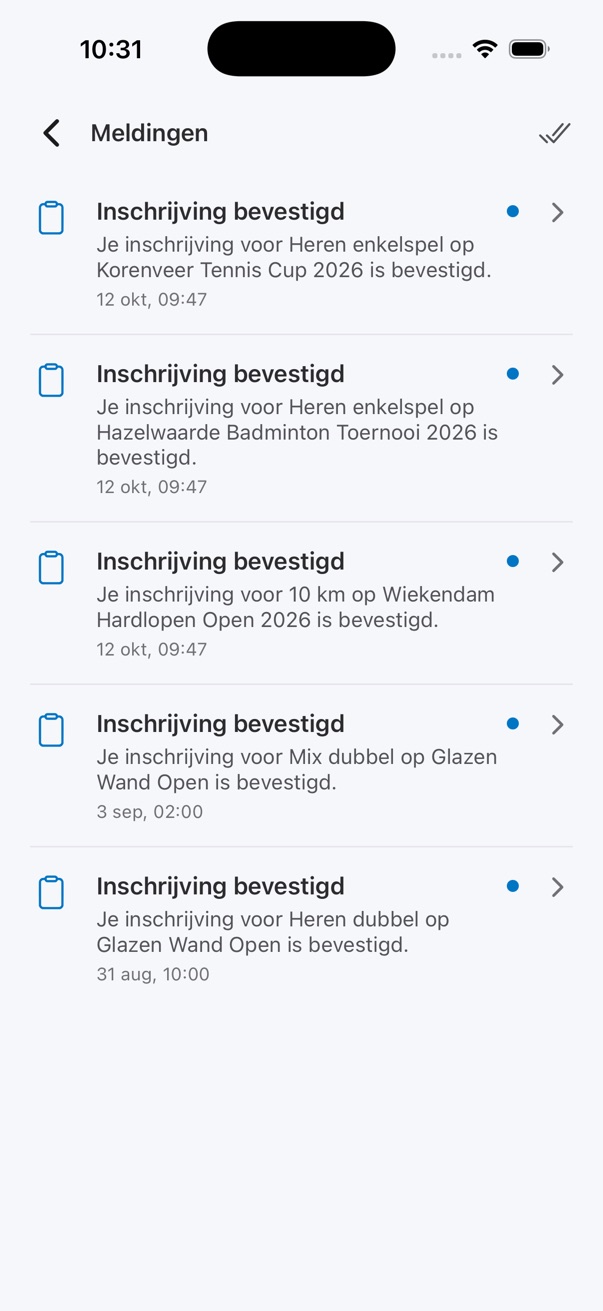
Everything the organisers tell you arrives here, each message saying what it is about and when it came in. A blue dot means you have not read it, and the double tick in the corner marks the lot as read. Tap a message and you land on the entry or the tournament it is about.
- The subject and the time of every message
- A blue dot on anything still unread
- Mark everything as read in one tap
Keeping track
Three places that hold what you have done, what you have saved and what you can set for yourself.
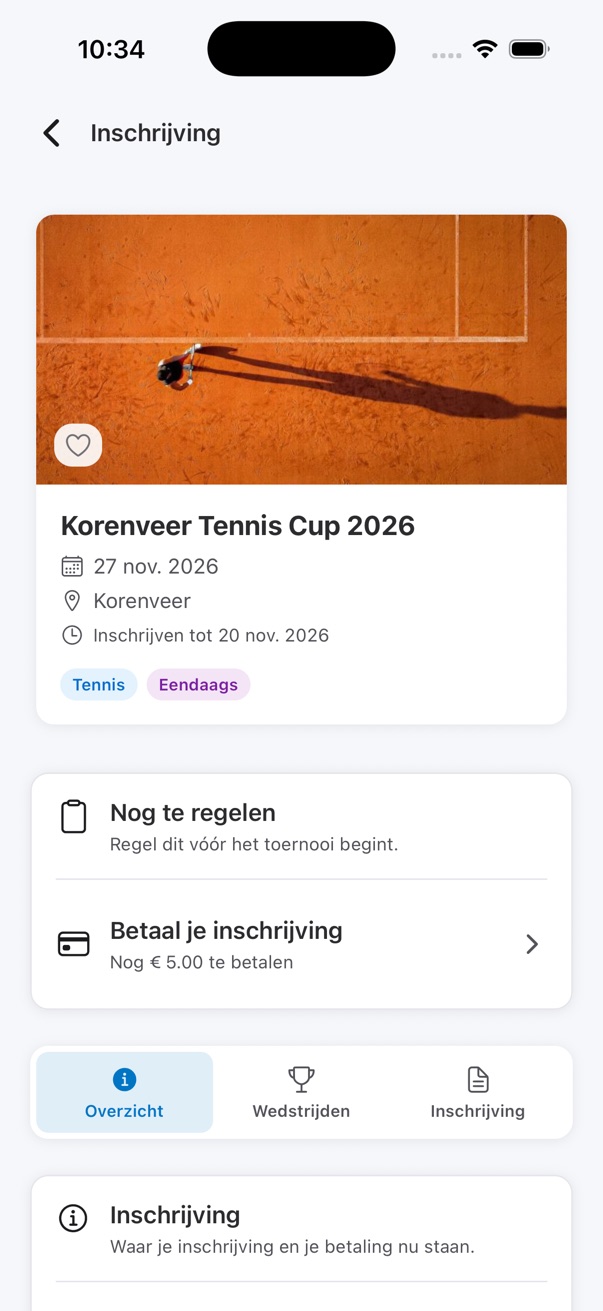
Your entry
Every entry has a page of its own, with the tournament banner, the date, the town and whether entry is still open. What needs arranging sits above the tabs, with the amount still outstanding. Under it are tabs for the overview, your matches and the entry itself.
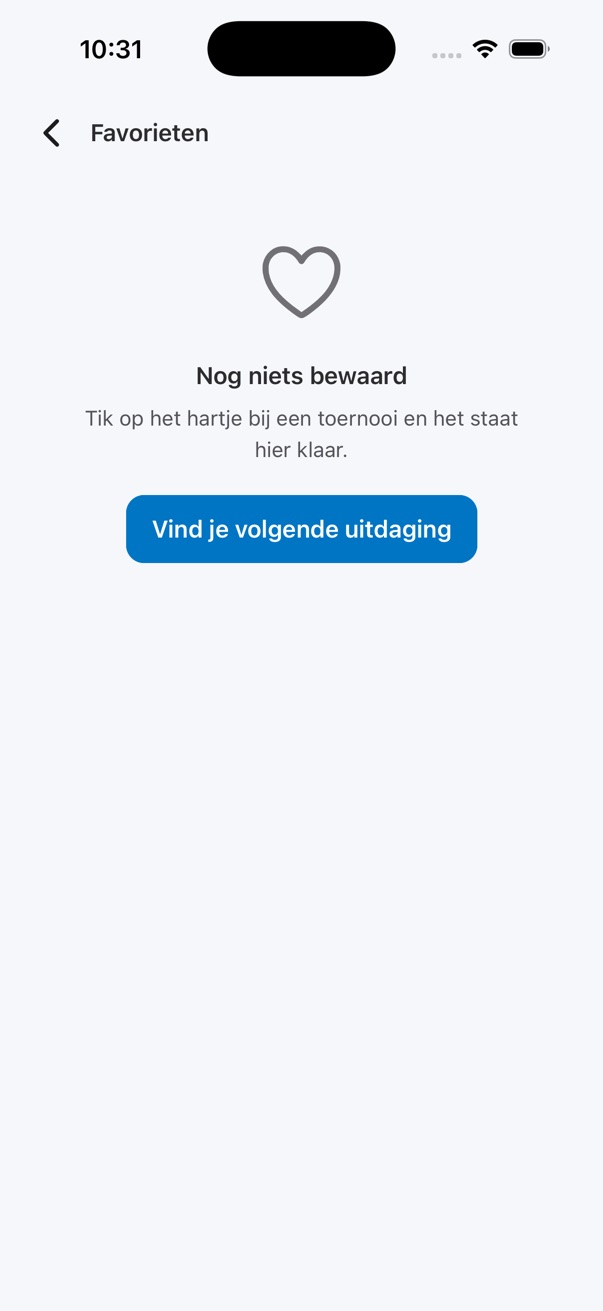
Favourites
This is what your favourites look like while you have saved nothing: the screen explains itself. Tap the heart on a tournament, either in the search list or on its own page, and it waits for you here. A button underneath takes you straight back to searching.
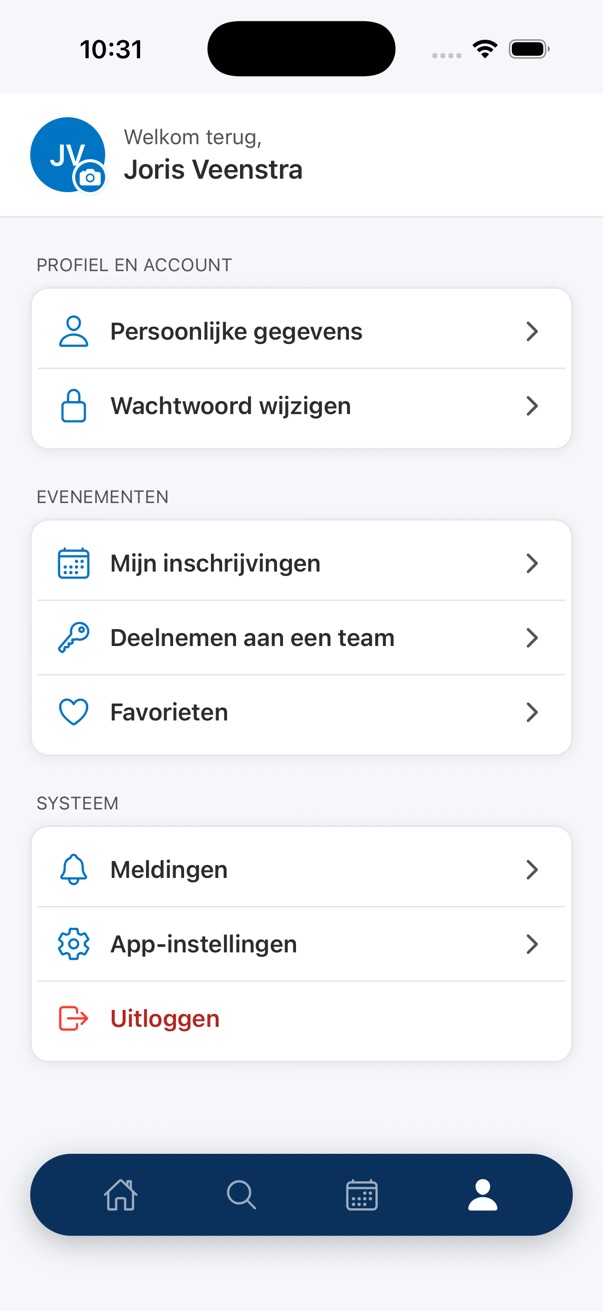
Your profile
The last tab is your own corner: your personal details and your password, your entries, joining a team, your favourites, your notifications, and the app settings with the theme, the language and the lock that uses your fingerprint or your face.
Questions about the app
The questions an app that is not out yet gets asked most.
The app itself
Where can I download the app?+
Nowhere yet. It is being built and tested and it is not in the App Store or on Google Play. We are not naming a date, because we do not have one we could keep. As soon as it is out, you will read it on the page about the app.
Then why is there already a manual?+
Because the screens exist and work. You can see now what you will be doing later, and you can see that the steps are the same ones the website asks for. The manual runs ahead of the app itself: the screens come from the version running today, so details may still change.
Can I do all of this without the app?+
Yes. Searching, entering, checking your playing schedule and following the standings all work on the website, including in the browser on your phone.
Which phone do I need?+
One app for both: you need iOS 16 or newer, or Android 8 or newer.
Does the app work without internet?+
You need a connection. What has already loaded stays readable if you drop out of signal, but entering needs a working connection.
Your account and your settings
Do I need a separate account for the app?+
No. It is the same free account as on the website, and your entries and favourites are in it from the first screen.
Why does signing up ask for my date of birth and gender?+
Because a lot of categories have an age or gender limit. With those two details the app shows you what you are eligible for, instead of asking you again at every entry.
I have forgotten my password.+
The sign-in screen has a forgotten-password link under the button. It lets you set a new password yourself, for the app and the website at once.
Can I lock the app?+
Yes. The app settings have a lock that uses your fingerprint or face recognition, if your phone supports it.
What language does the app speak?+
Dutch and English, your choice in the app settings. The same screen sets the theme to light, dark or whatever your phone is doing.
Entering and playing
How many steps does entering take?+
It depends on the tournament. The categories, your details and the final summary are there for everybody. A step for your teammates, a step with paid extras and the question of when you cannot play only appear when the club turns them on. The header always says which step of how many you are on.
Do I have to finish an entry in one go?+
No. If you stop halfway the app keeps what you filled in and asks next time whether you want to carry on or start again, telling you when you saved it.
How do I join somebody else’s team?+
Through the invitation your teammate sends: a link you open, a join code you type or a QR code you scan. Your profile has an option for joining a team if you already have the code.
Are the times in my own time zone?+
No, and the app says so on the screen: times are on the venue’s clock, not on your phone’s.
Can I run my tournament from the app as an organiser?+
Not yet. The app is being built for players first. Creating a tournament, the draw and the playing schedule happen on the website.
In the meantime, just play
Everything in this manual works on the website today, including on your phone. Find a tournament and enter; paying online is coming soon.